Unity Access to Android SDK Payments
Introduction
This article describes how to interface with the Miracle Games SDK's payment interface to open the payment window.
User Payment Flowchart
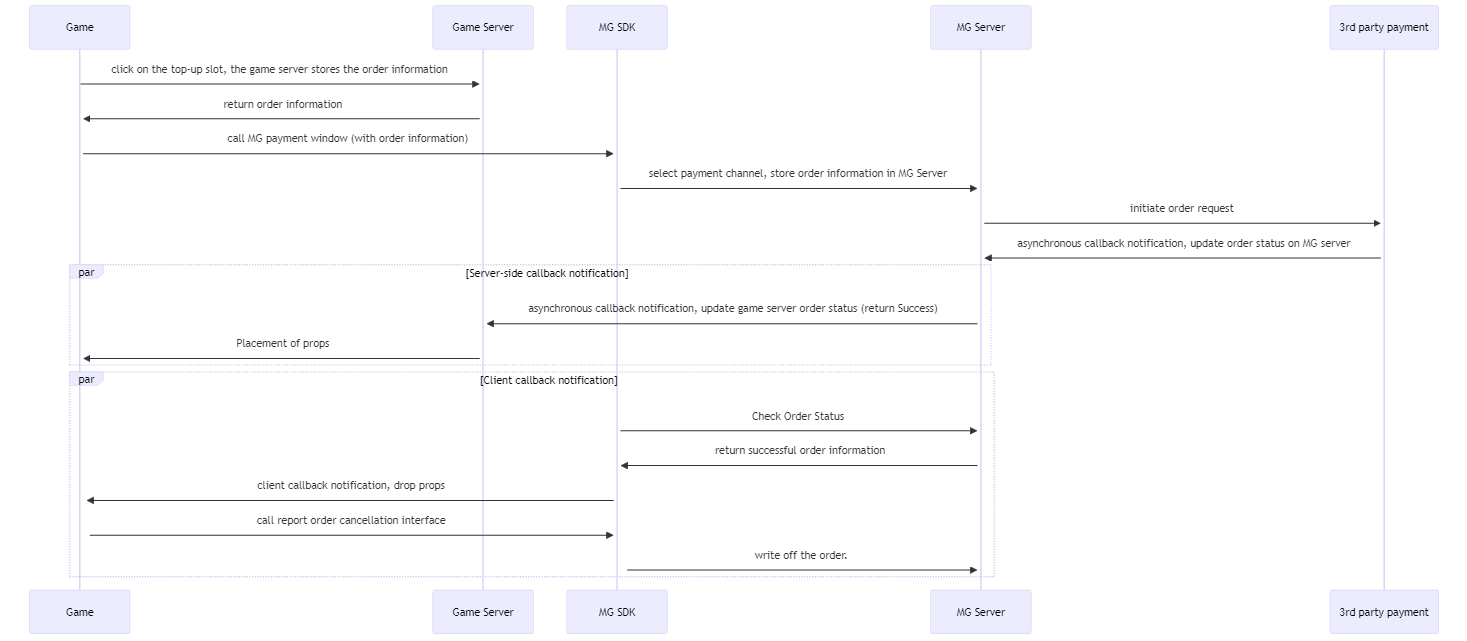
Payment interface
Interface Description:
Calling this interface opens the platform's payment interface. A payment callback message is sent when the user's payment is complete or canceled.
Method Definition:void payPurchase(String goodskey, String comment, String callbackId)
Parameter Description:
goodskey: Product Key, generated by MiracleGames when creating a product.
comment: custom parameter, urlencode before passing, will return the parameter to the developer as is after completing the payment.
callbackId: payment callback id, generated when creating the callback address. After the payment is completed, MiracleGames will call the url corresponding to this ID to notify the developer of the payment result.
Example of an interface call:
public void Pay() {
	using (AndroidJavaClass jc = new AndroidJavaClass("com.unity3d.player.UnityPlayer"))  {
		using (AndroidJavaObject jo = jc.GetStatic("currentActivity")) {
			jo.Call("payPurchase", "93C97BDFF86AF61", "comment", "");
		}
	}
}
Server-side callback to developer server after successful payment
Games with servers can receive order information and ship orders through their servers.
Asset Change Client Callback Interface
If the game has a server to receive callbacks, then there is no need to access this function, directly access the server side of the payment callback. Before accessing the client-side callback, you need to configure the game type identifier in the Activity, and set it to "true" to indicate a single-player game.Example:
<!-- Game type representation -->
<meta-data
	android:name="SINGLE_GAME"
	android:value="true" > <!--true for single player games false for online games-->
</meta-data>
Interface Description: For single-player games without servers, players need to make client-side callbacks after successful payment and send props to write off the order.
Method Definition:void onAssetsChange(string message)
Parameter Description:
The message parameter value is: "xx,xx,xx,xx,xx,xx..." . Separated by commas.
The first value is the product order number
The second value is a user-defined parameter, assigned by the user when initiating a payment, and originally returned after a successful payment.
The third value is the name of the product
The fourth value is the number of items
The 5th value is the commodity label
Example:
void onAssetsChange(string message)
    {
        Debug.Log("===onAssetsChange : " + message);

        string[] temp = message.Split(new char[] { ',' });
        if (temp != null && temp.Length >= 0)
        {
            string product_id = temp[0]; //MG order number
            string comment = temp[1];  //customize the passthrough parameter
            string goodsNam = temp[2]; //goods name
            string goodsNum = temp[3]; //number of goods
            string goodsTag = temp[4]; //goods tag
            Debug.Log("Sending props");
            ReportAssestFulfillment(product_id);//write off the order after props are sent out
        }
    }
Write-off of assets
If the game has a server to receive the callbacks, there is no need to access this feature, and you can directly access the payment callbacks on the server side.Interface Description: After sending props to the user, you need to call this interface to write off the asset order, otherwise every initialization will send the client information about the order, prompting that it has not been written off.
Method Definition:void ReportAssestFulfillment(String id)
Example:
void ReportAssestFulfillment(string id)
    {
        using (AndroidJavaClass jc = new AndroidJavaClass("com.unity3d.player.UnityPlayer"))
        {
            using (AndroidJavaObject jo = jc.GetStatic("currentActivity"))
            {
                jo.Call("ReportAssestFulfillment", id);//id: merchandise order number, the first parameter value returned by the asset change client callback
            }
        }
    }